
Accessible Images: A Simple Guide for Website Managers
Why Accessibility Matters
Images make content engaging, but without alt text they can create barriers for people with disabilities.
Alt text ensures:
- Screen readers can describe images.
- Better voice command and mobile experiences.
- Improved SEO and compliance with accessibility standards (WCAG, ADA).
How to Add Alt Text
Use the “Alt Text” or "Alternative Text" field when inserting or editing an image. Describe the image based on its purpose on the page.
Writing Good Alt Text
- Be concise (typically 5–15 words).
- Convey the same information the image provides to sighted users.
- Avoid phrases like “image of” or “picture of” unless it’s necessary for context.
- Include context if relevant (e.g., who, what, where, purpose).
- Example:
✅ Good: "City park with walking trails and benches."
❌ Bad: "Image of park, trees, benches, walking trails, green grass, sunny day."
Depending on your site, you may find the Alternative Text field in the Image Properties modal (see screenshot) or Alternative description field in the Insert/Edit Image modal (see screenshot).
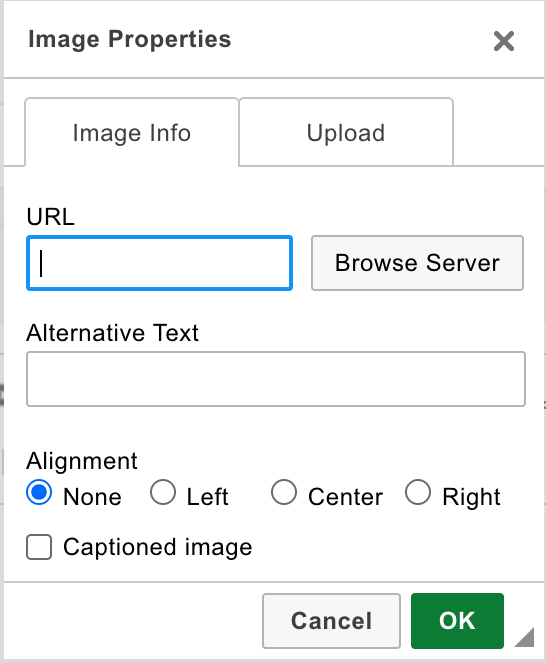

Types of Images & What to Do
First, you need to know what type of image it is to best determine how to make it accessible.
Identify which type of image you have on your webpage and see how you need to make it accessible.
-
Informative Images
Images that convey information (photos, illustrations) that is not purely decorative.
Action: Add alt text describing the essential info.
Example: Photo of a park → "City park with walking trails and benches." -
Decorative Images
Purely visual, no important info. Note that, since images are added for a reason, very few images fall into this category.
Action: Depending on your site, check "Image is decorative" under Accessibility or if you do not see this option, leave alt text empty. -
Complex Images (Charts, Graphs)
An image that conveys detailed or structured information that cannot be fully captured in short alt text.
Action:- Provide a full description in the page content or link to another page.
- In alt text, start with a brief summary and indicate where to find details.
-
Images of Text
Avoid text in images. If used, alt text should include the same words.
Example:
Image says: “Annual Conference 2025” → Alt text: “Annual Conference 2025”
Tip: To save time you might want to use an AI tool like Microsoft Copilot to help generate proper alt text for images.
Quick Checklist
- Does the image convey information?
If yes, add alt text (and long description for complex images). - Is it purely decorative? (Probably not)
Check "Image is decorative" under Accessibility OR leave alt text empty. - Is it text in an image?
Include the same words in your alt text. - Is it complex?
Provide a detailed description elsewhere and reference it in alt text. - Does alt text reflect the image’s purpose on the page?
Accessibility Guidelines
- Penn Web Accessibility: Alternative Text and Alternative Text for Complex Images
- WAI Tutorials: Images: Step-by-step guidance on writing alt text and handling complex images.
- WebAIM: Alternative Text: Detailed examples of good vs. bad alt text.